rss
twitter
    Find out what I'm doing, Follow Me :)
Showing posts with label ENCRYPTION TECH. Show all posts

HOW TO CRACK ANY TYPE OF CD PROTECTION

HOW TO CRACK ANY TYPE OF CD PROTECTION


Using W32Dasm, and HIEW. 

OK, let’s start:
First of all, you have to run the damn game you want to crack, without the CD.
The game, doesn’t work of course, (Please, don’t panic) BUT a window pops up, telling you an error message. 
This error message will help you to crack the game so, you’ve got to remember it.
For example: Please insert the - CD, or: You need the CD to play the - . 
( -, is the game you want to crack). Anyway, if you are so idiot and you can’t remember it, write it, in a little piece of paper.
Now, run Win32Dasm, and on the toolbar, press the first little button on the left, OR, go to Disassembler ->Open file to Disassemble. A menu will pop up. Select the exe which you want to crack. The disassemble, will take few minutes so, I suggest you, to go for shitting.

OK, it finished its process.
Now, in your screen, there is a strange text, and we can’t understand anything of course. Don’t worry, the only thing we have to do, ( If you want, you can change the font), is to click on the String Data References, the button next to the print button (Strn.REF).
You can see a window which is called String Data Items. Scroll down, and try to find the game’s error message. When you’ll find it, double click on it, and then, close the window, to go back to the Win32Dasm text.
As you can see you are somewhere in the CD check routine. This is the message’s place. Now comes the interesting and difficult part, so, be careful.
We don’t know what all these shits mean, BUT we must know the @ offset of every call and jump command.
Write down, every call and jump @ offset number. (You have to be sure, that the OPBAR change its used color to green). You need the number behind the @offset without the h. Let’s go to HIEW, now.

HIEW:
To move up and down, use the cursor keys. Start HIEW. exe.
In the HIEW directory, there is a list of exes and programs. Go to the directory, which you saved the game’s exe, we want to crack, and click on the exe. Click F4, and then, a menu will pop up, with 3 words. Text, Hex, and Decode. Click on Decode, and now, we can understand the list of numbers.
Click F5, and you can now enter the number, we wrote down, in Win32Dasm. Type it, and you will be placed at the number’s place. The cursor is placed on a command.

Before I’ll continue, I want to explain you something. For example, if the command where our cursor is placed on, is E92BF9BF74, means that it is 5 bytes.
Every 2 numbers, are one byte: E9-2B-F9-BF-74 = 90-90-90-90-90. 10 letters, mean, 5 bytes.
OK, if you understood it, you can continue.

Press F3, which means edit, and now you can edit these ten numbers.
Type five times, the number 90. For every byte, 90. Now click on F10 to exit.
We cracked the CD protection

Become Secure on online

Become Secure on online


Privacy has become something very important to people using Internet these days. The more we do online, the more trails we leave behind. There are lots of private companies tracking every movement, keystrokes, websites you visit and the people you communicate with online. These companies often sell this information to law enforcement agencies or the government for legal affairs. Day by day more sophisticated tools and methods are being discovered to track your activities and the entire scenario has become very sophisticated. So it is very important for one to keep his privacy and stop third-parties from intruding into their activities. In this article, we will learn about various methods by which you can become secure online and mask your activities that you do not want the world to know.
The three types of methods we will use to make ourselves secure online are:
  • TOR
  • Proxies
  • VPN

TOR
Tor, short form of The Onion Router is a system that offers you anonymity online. TOR clients  redirects all your internet traffic through a network of computers concealing your actual location and preventing any tracking. The TOR bundle comes with a firefox that’s integrated to the TOR network and a GUI named Vidalia is used to use the TOR network. Here is how Vidalia looks like:
111
So before we start, let’s see how the TOR network works. Here are some pictures from the official website which will help you get started.
222
So whenever you try to contact to Dave, instead of directly contacting him, TOR first sends your transaction through a number of networks so no single point can track back to your location. So packets from your network take a random route through the network and reach the destination.

333
So once a route has been established, all kinds of data can be sent and received over the TOR network. And after a fixed amount of time, TOR changes the route through which you connect randomly which makes it very hard to trace back to you.

444
Tor is good, but it can’t completely secure you and your activity. While it protects the transported data, experts can use statistical analysis and get your circuit route and find out your location.             Official Websitehttp://www.torproject.org

PROXIES
A proxy or a proxy server is a computer system or application that acts as an intermediary between you and your client server or application. So you want to access a target, you connect to the proxy, the proxy connects to the target, then it gets back the relevant information to you.
555
So a proxy can be used to keep you anonymous, or to bypass IP restrictions, security/parental controls, or to get around regional restrictions. A proxy server appears as an IP address which you have to configure on your web browser to use it. When you do that, your original IP will be masked by the proxy and you will be anonymous.
190.96.64.234 – This is how a proxy looks like. All proxies are from a particular location or country so using a proxy near to your target server might help faster browsing too! If you’re on Firefox, you can set a proxy by going to Firefox Options > Advanced > Network > Connection Settings >Manual Proxy Settings.
666
VPN (Virtual Private Network)
VPN or Virtual Private Network is a remote server in an offsite location that tunnels all your data and information through their secured servers by encrypting them thereby making your connection secure. Most of the VPN’s use 128 bit SSL encryption or 256 bit SSL encryption. More the bit count, better the encryption. VPN helps you hide your real IP and spoofs your location to any programs or clients trying to track you. So suppose you’re from USA and needs to access a website that’s for Russia only, I could use a VPN located in Russia that masks my IP as a Russian one and thereby access the website.
777
Another matter of concern while using a VPN is logs. Almost all of the VPN providers keep logs as a security measure. This is done so that if they ever want to check up a user’s activity, they could refer to the logs. So federal agents or the government could contact the VPN providers and get your activity. Hence if you are really concerned about your security, you should purchase a VPNthat do not keep logs. When you purchase a VPN, make sure you choose one which is closer to you since it will make your Internet experience smooth and won’t cause any lag or slowness.
There are lots of free VPN’s available but they’re not recommended since most of them come with lots of ads, adwares and slow connection. Most of them keep logs which mean you’re not really secure and the connection won’t be having a good encryption rate. So it is always recommended you get a paid VPN. But I’ll include some good free and paid VPN’s to help you out.

Free VPN

Paid VPN

CONCLUSION
So that’s it. I’ve discussed some main methods by which you can be secure online. But always remember, you’re never 100% safe. If the federals or others want to track you, they can still do it no matter what measures you’re using to prevent it. These methods will work, but only up to a limit. The rest is up to you to use your intuition to keep yourself safe

How To Surf Anonymously – For Free

How To Surf Anonymously – For Free

Whenever you surf the Web, you leave yourself open to being snooped upon by web sites. They can track your online travels, know what operating system and browser you’re running, find out your machine name, uncover the last sites you’ve visited, examine your history list, delve into your cache, examine your IP address and use that to learn basic information about you such as your geographic location, and more. To a great extent, your Internet life is an open book when you visit.


Sites use a variety of techniques to gather and collate this information, but the two most basic are examining your IP address and placing cookies on your PC. Matching your IP address with your cookies makes it easier for them to create personal profiles.

If you’d like to see what kind of information sites can gather about you, head to two sites that peer into your browser and report what they find. The Privacy.net Analyzer gathers and displays basic information, such as your operating system, screen resolution, what site brought you to Privacy.net’s Analyzer, general system setup, and so on.

BrowserSpy delves even deeper into your system, and even reports on whether you have certain software on your system, such as RealPlayer and Adobe Acrobat, including version information.

Protect Yourself: Surf Anonymously

The best way to make sure web sites can’t gather personal information about you and your computer is to surf anonymously using an anonymous proxy server that sits between you and the web sites you visit. When you use an anonymous proxy server, your browser doesn’t contact a web site directly. Instead, it tells a proxy server which web site you want to visit. The proxy server then contacts the web site, and when you get the web site’s page, you don’t get it directly from the site. Instead, it’s delivered to you by the proxy server. In that way, your browser never directly contacts the web server whose site you want to view. The web site sees the IP address of the proxy server, not your PC’s IP address. It can’t read your cookies, see the referring page, or examine your clipboard because your PC is never in direct contact with it. You’re able to surf anonymously, without a trace.

There are three primary ways to use anonymous proxy servers. You can configure your browser to use an anonymous proxy server (or else get software to configure it for you); you can visit a web site, which does the work of contacting the server; or you can download software which ensures your anonymity when you use the Internet. We’ll look at how to do each.

Keep Yourself Anonymous with Tor

Tor is the best free software you can find for being anonymous when you use the Web. When you use Tor, all your communications, (not just Web surfing, but also instant messaging and other applications) is in essence bounced around a giant network of Tor servers called “onion routers,” until it’s impossible for sites or people to be able to track your activities.

Setting up Tor is straightforward. Download a package that includes not just Tor, but other software you need to work in concert with it, such as Privoxy, a proxy program. All the software is self-configuring, so you won’t need to muck around with port settings or the like. Tor runs as a small icon in your system tray. To start Tor, right-click it, and choose Start from the menu that appears; to stop it, right-click, it and choose Stop.

Once it starts, simply use the Internet as you normally would. If you’re super-paranoid, you can regularly change your Tor “identity,” to make it even harder for anyone to track your travels. Right-click the Tor icon, and select “New Identity”; that’s all it takes.

Firefox users will want to download the Torbutton, which lets them turn Tor on and off from directly within Firefox.

I’ve found only one drawback to Tor; at times, I’ve noticed a slowdown in surfing when using it. But that comes and goes, and slowdowns aren’t that extreme. So if you’re worried about your privacy when you surf, it’s a great bet.

Web Sites That Let You Surf Anonymously for Free

A number of free web sites offer free anonymous surfing via proxy servers. The benefits of these sites are obvious: when you surf, you’re anonymous. But there are some drawbacks as well. Surfing tends to be slower, and in some cases very slow. And when you use these web sites, some sites you visit from them don’t display properly.

The sites all work pretty much the same. Head to them, and in a box, type the web site you want to visit. From that point on, you’ll be surfing anonymously; the site does the work of using an anonymous proxy server for you.

The Cloak is one such service. It lets you customize exactly how anonymous you want to be and what surfing technologies you want to leave on or off. It goes beyond providing anonymity and can also protect you in other ways, for example, by turning off Java and Javascript, or even blocking banner ads. You can configure all that yourself, before you even start to surf.

Once you do that, you type in the address you want to visit, and you’re off. As you browse in your browser’s address bar, you’ll notice an odd URL that contains The Cloak’s URL as well as the site you’re visiting. For example, if you visit CNN, you’ll see something like this:

“http://www.the-cloak.com/Cloaked/+cfg=31/http%3A//www.cnn.com/”

Note that if you want to remain anonymous during your surfing session after you visit the first web site from The Cloak, you’ll have to only click links. If you type a URL directly into the address bar, The Cloak will no longer work.

The Cloak is free but has some limitations. You’ll surf more slowly than normally, and the slowdown may become noticeable. One reason is that the site also offers a for-pay service, and so it throttles down free users, while letting those who pay surf without a throttle. And the site may also limit the amount of time you surf anonymously as well, depending on whether many users are logged in simultaneously.

Use Your Browser with an Anonymous Proxy

If you don’t like the limitations imposed on you by sites like The Cloak, or would simply prefer to configure anonymous surfing yourself, you can easily set up your browser to use an anonymous proxy server that sits between you and the sites you visit.

To use an anonymous proxy server in concert with your browser, first find an anonymous proxy server. Hundreds of free, public proxy servers are available, but many frequently go offline or are very slow. Many sites compile lists of these proxy servers, including Public Proxy Servers andAtom InterSoft proxy server list. To find others, do a Google search.

I prefer the Atom InterSoft proxy server list because it provides more information about each server. It lists server uptime percentage and the last time the server was checked to see if it was online.

Find the server with the highest percentage of uptime. Write down the server’s IP address and the port it uses. For example, if you see 24.236.148.15:80, the IP address is 24.236.148.15, and the port number is 80.

In Internet Explorer, select Tools > ¨Internet Options, click the Connections tab, and click the LAN Settings button (see the picture below). Check the box next to “Use a proxy server for your LAN”. In the Address field, type in the IP address of the proxy server. In the Port field, type in its port number. Check the box next to “Bypass proxy server for local addresses”; you don’t need to remain anonymous on your local network (and if your local network is a private network, the proxy server won’t be able to connect to any of your internal web servers anyhow). Click OK and then OK again to close the dialog boxes. Now when you surf the Web, the proxy server will protect your privacy. Keep in mind that proxy servers can make surfing the Web slower, depending on the proxy you’re using.


In Firefox, select Tools > ¨Options¨ > Advanced, click the Network tab, and click the Settings button. Choose “Manual proxy configuration”, enter the proxy information (IP address and port number), and click OK and then OK again.

Problems with Anonymous Proxy Servers

If you set up your browser to use anonymous proxies, as I just outlined, you need to keep in mind that there’s one potential danger: theoretically, a hacker could set up a proxy server and then use it to capture information about the Web sites you visit. And if you type in usernames and passwords, he could steal those as well.

I haven’t heard of this actually happening in the real world, but you should be aware that it’s a possibility. Using software such as Tor or a free proxy server such as The Cloak won’t expose you to this danger; only the use of public proxy servers does.

How can you protect yourself against this? Before using a proxy server, do a Google search on its name and address, to see if there are any reports about hackers using it. And it’s also a good idea to only use a server that has been on the lists a long time because hackers are not likely to keep a server running a long time without being caught or shutting it down. The other option is to use the proxy only for casual surfing and not use a proxy when you connect to a service that requires a username and password.

Do you have questions, comments, or suggestions? Feel free to post a comment

How to Block USB Ports in Windows


How to Block USB Ports in Windows


Today in the modern world USB devices are very common among computer users. Nowadays the USB device has become the greater special quality in saving the important files and all other documents. It’s very common in the world because of it’s a movable and large disk space produced.


Either we are using a personal computer or laptop in any places it can be even in office. Computers or laptops having a possible or open USB ports on our machines can setup a computer guard threat where any person using computers can plug in a enable virus infected flash disk, outside hard drive, or any other USB competent devices. And also within our computers unlimited USB ports also can be created by an uncontrolled flow of data belonging to a corporation data or other users are enabling to act out personal.


3 Simple Ways to Disable USB Ports

I. Disabling through Registry Editor:

1. Click Start, and then click Run (or) press "windows button + R".

2. In the Run box, type regedit, and then click OK.


3. Locate, and then click the following registry key:
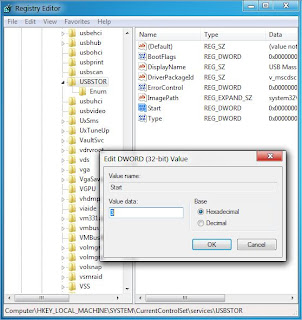
HKEY_LOCAL_MACHINE\SYSTEM\CurrentControlSet\Services\UsbStor

4. In the right pane, double-click on Start.

5. In the Value data box, type 4, click Hexadecimal (if it is not already selected), and then click OK.

6. Quit Registry Editor.
By default the Hexadecimal value is set to 3, which means enabled. To re-enable USB ports change this value back to 3.

II. Disabling through Device Manager:

1. Click Start > RUN

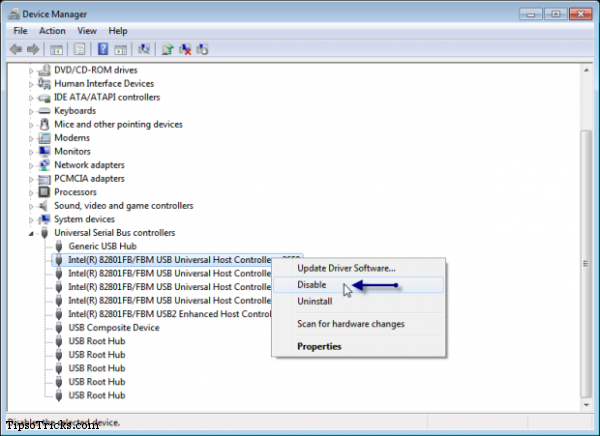
2. Type “devmgmt.msc” (this will open Device Manager of Windows)
3. Under Universal Serial Bus Controller, right click and click “Disable” on all the USB drives you can see under the sub menu.
To re-enable USB ports change this to "Enable".

III. Disabling through BIOS:

1. At system startup press DEL or F2 key to open BIOS settings.

2. In BIOS, find “Advanced Settings” or “Onboard Devices” menu (this may vary due to different BIOS manufacturers)
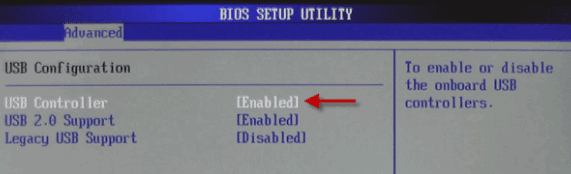
3. Find “USB Configuration” and "Disable" USB Controllers to disable all USB ports.
To re-enable USB ports change this to "Enable"

Lock and unlock your computer with a USB drive, secret-agent style


Lock and unlock your computer with a USB drive, secret-agent style

With Predator, you can turn your USB drive into a "key" that unlocks your computer when plugged in, and locks it when it's removed.
If you prevent access to your computer with just a password, you are missing out on an alternate (and more secure) way to lock down your computer.
Predator, a free Windows program, turns your USB drive into a key that locks your computer when it's removed. To unlock your computer, you'll have to plug the USB drive back in. (Talk about having secret-agent-style security.)
Anyone who attempts to access your computer without the USB flash drive will be hit with an epic "Access Denied" message. To get started, follow this guide:
Step 1: Download and install Predator.
Step 2: Once Predator launches, plug in your USB flash drive. None of the contents of the drive will be deleted or altered in any way, so feel free to use your primary thumbdrive.
When you insert the drive, a dialog box will appear asking you to create a password. Click OK to continue.
Step 3: In the Preferences window, take note of a few key settings. First, enter a secure, unique password in the "New password" field. If you lose your USB drive, you'll use it to unlock your computer.
If you'd like, you can check the Always Required box and you'll be asked to enter the password each time you use your thumbdrive to unlock your PC.
Finally, in the section under Flash Drives, ensure that the correct USB flash drive is selected. When you're done, click "Create key" and then OK.
(Credit: Predator)
Step 4: Predator will exit. When it does, click the Predator icon in the taskbar to restart the program. A few seconds later, the icon will turn green, alerting you that Predator is running.
Every 30 seconds, Predator will check to see that your USB drive is plugged in. If it isn't, your computer will dim and lock down.
Here are some extra tips:
  • To pause Predator at any time select "Pause monitoring" from the taskbar menu.
  • If someone tried to access your PC while it was locked down, you'll see the activity log when you log back in. You can see the log at any time by clicking "View log" from the taskbar menu.
  • Predator's Web site has several cool how-tos, including one that shows you how to program your computer to take a snapshot each time someone tries and fails to log in to your computer. Check it out.
One obvious flaw comes with this setup: you'll always be down one USB port. But if you're sold on Predator, consider purchasing a USB hub to compensate.
For more tips like this, check out my story on 10 cool ways to use the USB thumbdrives you have lying around.

WHAT IS BITLOCKER ENCRYPTION ?

BITLOCKER ENCRYPTION

Bit Locker In windows 7
The BitLocker Drive Encryption helps you to protect all files stored on the Operating System Drive, on fixed data drives or on removable data drives (such as external hard drives or USB flash drives).

BitLocker encrypts the entire drive. All the Windows system files necessary for startup and logon are also encrypted. You can log on and work with your files normally, but BitLocker can help block hackers from accessing the system files.

When you add new files to a drive that is encrypted with BitLocker, BitLocker encrypts them automatically. If you share encrypted files on the network then they can be normally accessed by the authorized users only.

Hardware requirements for BitLocker Drive Encryption

To use BitLocker Drive Encryption, your computer has to meet certain hardware requirements. These requirements vary depending on the type of drive that you are encrypting. 

Hardware requirements for the drive that Windows is installed on

To encrypt the drive that Windows is installed on (the operating system drive), BitLocker stores its own encryption and decryption key in a hardware device that is separate from your hard disk i.e. either Trusted Platform Module (TPM) or a removable USB Flash Drive.
To turn on BitLocker Drive Encryption on the operating system drive, your computer’s hard disk must:

Have at least two partitions. One partition must include the drive Windows is installed on and must be at least 400 MB. This is the drive that BitLocker will encrypt. The other partition is the active partition, which must remain unencrypted so that the computer can be started. If your computer does not have two partitions, BitLocker will create them for you.

Hardware requirements for data drives

You can use BitLocker to encrypt fixed data drives (such as internal hard drives) and removable data drives (such as external hard drives and USB flash drives). To encrypt a data drive, it must be formatted using either the exFAT, FAT16, FAT32, or NTFS file system and must be at least 128 MB.

How to Stop Your Friend From Copying Data To Pen Drive

How to Stop Your Friend From Copying Data To Pen Drive

If you have something that you want people to see but not to take it with them in their pen drive or if you own an institute where you do not want the student to copy stuff from the computers then this is the perfect solution for you.
English: Kingston DataTraveler 110 8GB USB fla...
Difficulty level: Simple

Follow these simple steps:

Note: to perform this you will have to login as an administrator.
1. Open the run dialog box (use the shortcut win +r)
2. Type in regedit, hit enter, this will open the registry editor .


3. Now navigate to the following address:
HKEY_LOCAL_MACHINE\SYSTEM\CurrentControlSet\Control
4. If you are a window 7 user,  then you will need to add a new folder here, right click on the pane > new > key and name it StorageDevicePolicies


5.Open the StorageDevicePolicies by clicking on it then right click on the plane >> New > DWord (32 bit)>> rename it  WriteProtect . Modify it’s value to 1 to enable write protect .


RESTART THE SYSTEM FOR  THE CHANGE TO TAKE PLACE.
Now every time anyone will try to copy data to pen drive this image will pop out.


How to remove write protection

Ok,  when you need to take the data from your system for your own,  just change the value of  WriteProtect that you created above, to 0 (ZERO). Now this will get disabled and you can copy data now.

 TIPS

  • To make this trick work you have to restart the computer.
  • Make sure you have used the correct spelling to rename the key.To avoid any confusion try copying from the page itself.

stegnograghy, an art of encyption

How To Hide Secret Files Inside Photos Using Winrar

Hiding secret files inside photos is example of Steganography. Ever heard of Steganography !!! Well for those who haven’t it simply an art of hiding secret files in plain form in so that only the reciptent knows thats its there

Uses of Steganography :

1. You can upload these photos on facebook , twitter , or via email  and circulate your msg .
2. You can hide all your secret data inside the photos in your computer and no one will come to know , even if they sees the photos.
3. You can pass secret msg to your friends very easily, without getting any attention. this can be done by encrypting the msg also but then it will arouse suspicion.
You will need compression software like winrar or 7zip. Here i will be using winrar . Just Google it and you can easily get it for free.

Steps to hide secret files inside photos:

Before we start Make sure that photos and text file both are in the same folder and install winrar if haven’t install it yet.
1. Now select all of the files that you want to hide (not the photo), right-click on them, and choose the option to add to archive and name it secret.
2. Now you will get a compressed archive of name secret.rar.
hide secret files inside photos
3. Open your command prompt , change directory to folder where  your files are stored using cd command. if you are new to command prompt check out how to use command prompt for bigginners .
4.Now type the following command:
copy /b photo.jpg + secret.rar secret.jpg.
5.  Once you hit enter you should get a output like this and a new photo name secret.jpg.

And that’s it! The picture file will have been updated with the compressed archive inside!

How to read secret files inside photos:

You can access your hidden file in two ways.
First is simple just change the extension to .RAR and open the file using WinRAR.
Second, open winrar >> file >> open archive and then select secret.jpg. Either way, you’ll see your hidden files show up that you can then extract out.


Note: Keep in mind that size of the picture will be increased by the same amount as the size of the archive.

I will recommend you to use .jpg format only for picture in which you are going to hide secret files. If you don’t know how to change format you can check out this how to change format of any image to jpg.

How To (Un)Lock Your PC By Being Nearby (With a Bluetooth Phone

How To (Un)Lock Your PC By Being Nearby (With a Bluetooth Phone)

banner-01

Imagine: you walk into your room, sit in front of your computer, and it unlocks itself. You finish what you’re doing, walk away, and it locks itself. No, it’s not magic – it’s Bluetooth and it’s easy to set up!

What You’ll Need

  • A computer with a Bluetooth connection
  • A phone or other device that can connect via Bluetooth
  • Either the Microsoft or WIDCOMM Bluetooth stack (for Windows)
  • Appropriate software

Essentially, you’ll have to pair your device with your computer so that the computer can recognize its MAC address, and allow both the computer and your phone to be “discoverable.” Then, the respective software for each operating system should take over from there, locking the computer. Each method should use the OS’s default locking mechanism, no fake proprietary garbage here. Additionally, you should be able to use any kind of device that will connect via Bluetooth. I’ve only used smartphones – an iPhone 4 and a Droid X – so I know they work for sure, but there are various reports online of success on OS X and Linux with Wii remotes and other devices.

The Windows software, BTProximity, only works with the Microsoft and WIDCOMM Bluetooth stacks. On OS X, you need to have Proximity installed and configured to get this trick to work, but the actually execution is done by AppleScripts that you can find on the internet. If you don’t mind paying some money, Rohos Logon Key can use Bluetooth as well as USB drives to accomplish the same task, though it’s a little steep at $32 for a personal license. They also have an OS X version. The Linux software BlueProximity seems to offer the best package. You can tweak your settings a little bit better and it has support for distance approximation, too.
We’ll be doing a step-by-step guide for Windows, but it shouldn’t be too hard to figure this out on OS X or Linux. The same basic steps should apply.

Configuring BTProximity

Make sure you Bluetooth stack is running and your device is paired properly.
After you download and install BTProximity, it should be running automatically. If not, find it in the Start menu.

Right-click the icon in the system tray and select “Configure…”

You’ll see the main window pop up.

The first thing you should do is click the “Install Unlock” button. Not doing this will still allow your computer to lock itself when you leave, but it won’t unlock when you get back automatically. You’ll see a little pop-up message when it installs successfully.

Click OK and then click the “Manage Credentials” link in the Configuration window.

You can type in your username and password, and select whether or not to remember it. Since I’m using this at home, I’m not too worried about security, so I checked that option. Click OK.
To choose your device, click on the “Select…” button in the Configuration window. My computer’s Bluetooth device had some problems finding things this way, so I manually typed in the MAC address of my phone in the field. This worked for me without any problems.

You can change the polling time from the default of 90 seconds. If you decrease this too much, your battery may not last as long, so remember that.
Be sure to check the “Lock when device goes out of range” box, and adjust the number of attempts accordingly. Devices that cut out sometimes may need a higher amount of connection attempts before the computer locks.
Next, check “Unlock when device comes into range”. The “Fask Unlock” option will allow your computer to unlock as soon as the MAC address of your phone is seen.

That’s it! Keep in mind that Bluetooth distances can vary depending on your surroundings. As such, it works very well for me at home – when I leave the room the computer locks, and when I enter again it unlocks. If you’re having issues, you may want to uncheck “Secure (Ignore unpaired devices)” in the Configuration window.

This a pretty simple setup that works pretty well for home use. I can automatically unlock my computer when I’m in any given room so long as I have my device’s Bluetooth connection on. Do you have a better way to log in? Have you thought of a better use for a simple trick like this? Share your thoughts in the comments!

PASSWORD PROTECT YOUR USB


USB Safeguard 6.0 Full (Medafire)

Posted by shasconvicted.blogspot.in


USB Safeguard 6.0 | 1.06 MB
Mirrors: Mediafire | Uppit


USB Safeguard is a portable software program to encrypt and protect data with a password on your removable pen drives using the AES 256 bits encryption.The main purpose of using a USB pen drive is that you can bring your data with you wherever you go. Loosing the drive can be very dangorous for you or your company if you have confidential information on it.

Protect the pen drive with a password! USB Safeguard offers users (novice and expert) a friendly yet extremely powerful security solution that fully protects valuable data stored on USB pen drives.

Also, the program has a useful feature that allows you to enter your email or phone if you lose the pen drive.

Here are some key features of  USB Safeguard :

� Runs with any USB pen drive
� No installation required
� On the fly AES 256 bits encryption
� Secure your data if drive is lost
� Unecessary admin rights
� There is no back door
� 100% portable

Password - www.egyhacks.net


direct download link=