rss
twitter
    Find out what I'm doing, Follow Me :)
Showing posts with label MCITP. Show all posts

Become Secure on online

Become Secure on online


Privacy has become something very important to people using Internet these days. The more we do online, the more trails we leave behind. There are lots of private companies tracking every movement, keystrokes, websites you visit and the people you communicate with online. These companies often sell this information to law enforcement agencies or the government for legal affairs. Day by day more sophisticated tools and methods are being discovered to track your activities and the entire scenario has become very sophisticated. So it is very important for one to keep his privacy and stop third-parties from intruding into their activities. In this article, we will learn about various methods by which you can become secure online and mask your activities that you do not want the world to know.
The three types of methods we will use to make ourselves secure online are:
  • TOR
  • Proxies
  • VPN

TOR
Tor, short form of The Onion Router is a system that offers you anonymity online. TOR clients  redirects all your internet traffic through a network of computers concealing your actual location and preventing any tracking. The TOR bundle comes with a firefox that’s integrated to the TOR network and a GUI named Vidalia is used to use the TOR network. Here is how Vidalia looks like:
111
So before we start, let’s see how the TOR network works. Here are some pictures from the official website which will help you get started.
222
So whenever you try to contact to Dave, instead of directly contacting him, TOR first sends your transaction through a number of networks so no single point can track back to your location. So packets from your network take a random route through the network and reach the destination.

333
So once a route has been established, all kinds of data can be sent and received over the TOR network. And after a fixed amount of time, TOR changes the route through which you connect randomly which makes it very hard to trace back to you.

444
Tor is good, but it can’t completely secure you and your activity. While it protects the transported data, experts can use statistical analysis and get your circuit route and find out your location.             Official Websitehttp://www.torproject.org

PROXIES
A proxy or a proxy server is a computer system or application that acts as an intermediary between you and your client server or application. So you want to access a target, you connect to the proxy, the proxy connects to the target, then it gets back the relevant information to you.
555
So a proxy can be used to keep you anonymous, or to bypass IP restrictions, security/parental controls, or to get around regional restrictions. A proxy server appears as an IP address which you have to configure on your web browser to use it. When you do that, your original IP will be masked by the proxy and you will be anonymous.
190.96.64.234 – This is how a proxy looks like. All proxies are from a particular location or country so using a proxy near to your target server might help faster browsing too! If you’re on Firefox, you can set a proxy by going to Firefox Options > Advanced > Network > Connection Settings >Manual Proxy Settings.
666
VPN (Virtual Private Network)
VPN or Virtual Private Network is a remote server in an offsite location that tunnels all your data and information through their secured servers by encrypting them thereby making your connection secure. Most of the VPN’s use 128 bit SSL encryption or 256 bit SSL encryption. More the bit count, better the encryption. VPN helps you hide your real IP and spoofs your location to any programs or clients trying to track you. So suppose you’re from USA and needs to access a website that’s for Russia only, I could use a VPN located in Russia that masks my IP as a Russian one and thereby access the website.
777
Another matter of concern while using a VPN is logs. Almost all of the VPN providers keep logs as a security measure. This is done so that if they ever want to check up a user’s activity, they could refer to the logs. So federal agents or the government could contact the VPN providers and get your activity. Hence if you are really concerned about your security, you should purchase a VPNthat do not keep logs. When you purchase a VPN, make sure you choose one which is closer to you since it will make your Internet experience smooth and won’t cause any lag or slowness.
There are lots of free VPN’s available but they’re not recommended since most of them come with lots of ads, adwares and slow connection. Most of them keep logs which mean you’re not really secure and the connection won’t be having a good encryption rate. So it is always recommended you get a paid VPN. But I’ll include some good free and paid VPN’s to help you out.

Free VPN

Paid VPN

CONCLUSION
So that’s it. I’ve discussed some main methods by which you can be secure online. But always remember, you’re never 100% safe. If the federals or others want to track you, they can still do it no matter what measures you’re using to prevent it. These methods will work, but only up to a limit. The rest is up to you to use your intuition to keep yourself safe

Creating a Windows XP Unattended Installer


Creating a Windows XP Unattended Installer


This is an old guide but still very useful and deserve a descent update. I'm shock that many people still doesn't know about this small utility that can be found in their Windows XP Installer.
"Lawrence, It's almost two months now since you release the latest update of your software winbubble, do you have new releases coming soon? anyway, I have a question. How do I automate the installation of Windows XP? - Jared"
WinBubble is still in development and I'm still Shaping my skills. Surely, Everybody will benefit from my studies and Please stay tuned always. Thanks in advance.
Ok, Let's go back from the main topic. Open your Windows XP Installer and explore the following path: [Disc]SUPPORT\TOOLS
deploycab
Note: I recommend to download the latest one for Windows XP Service Pack 3, Download here
According to Microsoft the latest deploy.cab supports:
Windows XP; Windows XP Service Pack 1; Windows XP Service Pack 2; Windows XP Service Pack 3
1. Copy the file Deploy.cab to any directory and Extract the files...
2. Click the Useful utility setupmgr.exe and if your using Windows Vista Run the File as Administrator.
3. Follow the Pictures below:
d1
d2
d3
d4
d5
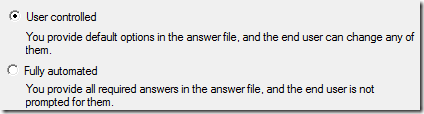
Now, you can enter your Name, Organization, Time Zone, Administrator Password, Display Settings, Product Key, Networking and other settings.
final
Note: In Windows Vista OS, Don't Set the Time Zone... Just proceed byClicking to the other options.
Go to the location where you save the file Unattended.txt andRename to WINNT.SIF and Place to I386 Folder of your Installer.
I made some Template if you don't want to use the software.
[Data]
    AutoPartition=1
    MsDosInitiated="0"
    UnattendedInstall="Yes"
[Unattended]
    UnattendMode=ProvideDefault
    OemPreinstall=No
    TargetPath=\WINDOWS
[GuiUnattended]
    AdminPassword="Enter_your_Passw0rd_here"
    EncryptedAdminPassword=NO
    AutoLogon=Yes
    AutoLogonCount=1
    OEMSkipRegional=1
[UserData]
    ProductKey=XXXXX-XXXXX-XXXXX-XXXXX-XXXXX
    FullName="Enter_your_Name_here"
    OrgName="HomeUser"
    ComputerName= Enter_your_Computer_Name_here
[Identification]
    JoinWorkgroup=WORKGROUP
[Networking]
    InstallDefaultComponents=Yes
Save it as WINNT.SIF and place that to your Windows XP Installer directory I386.

Block any app, trialed by chrome


block Google chrome using applocker


Hai, here i am going to share with you the tricks to block applications using security policy

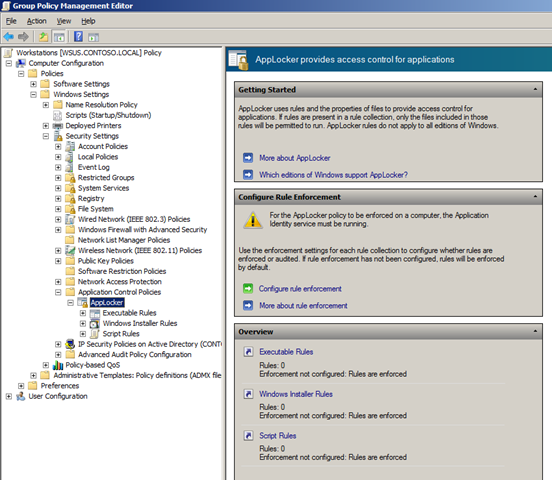
Step 1. Edit the Group Policy Object that is targeted to the computer you want to apply this policy. Navigate to Computer Configuration > Policies > Windows Settings > Security Settings > Application Control Policies and then click on “Configure rule enforcement”

image
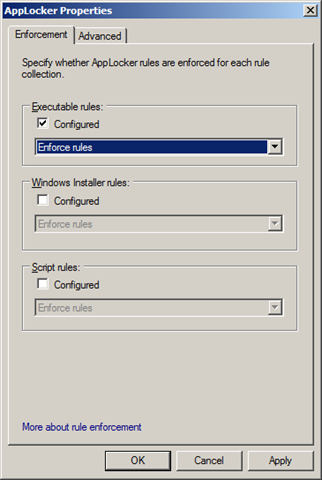
Step 2. Under Executable rules tick “Configured” and select the “Enforce rules” option from the pop-down menu then click “OK”.
image
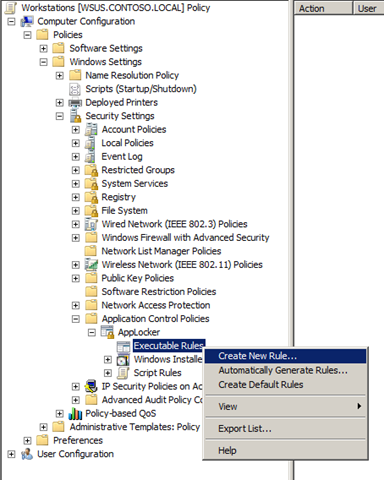
Step 3. Right click on “Executable Rules” and click on “Create New Rule..”
image
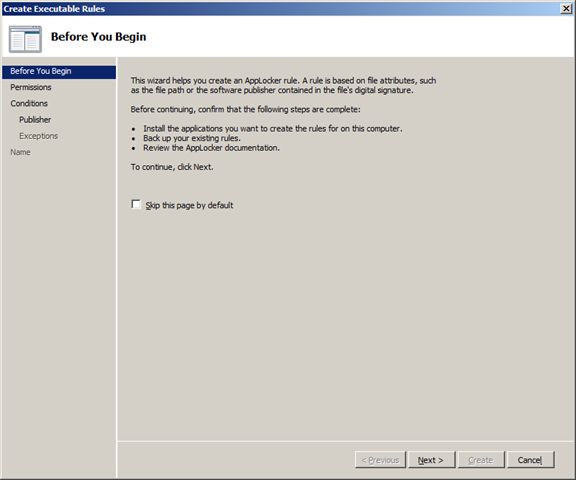
Step 4. Click “Next”
image
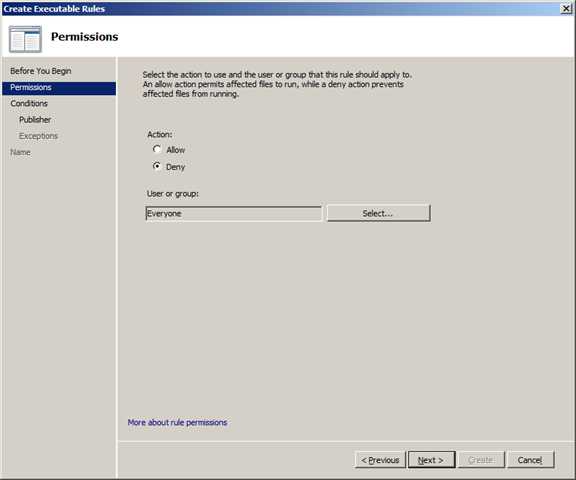
Step 5. Select “Deny” and then click “Next”
image
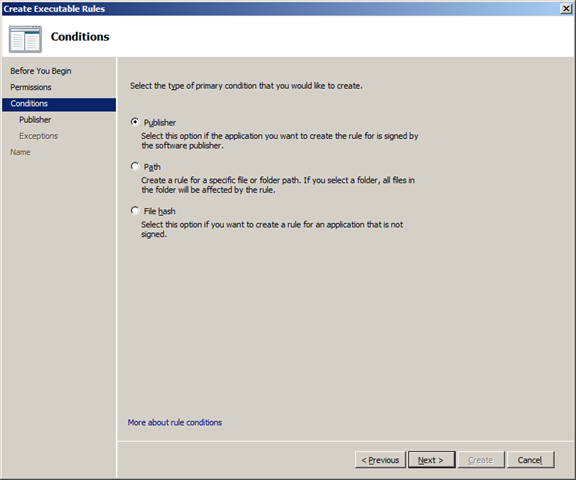
Step 6. Select “Publisher” condition and click “Next”
Note: The “Path” and “File hash” option are the same condition as was available in a software restriction policy that was in Windows XP and Vista.
image
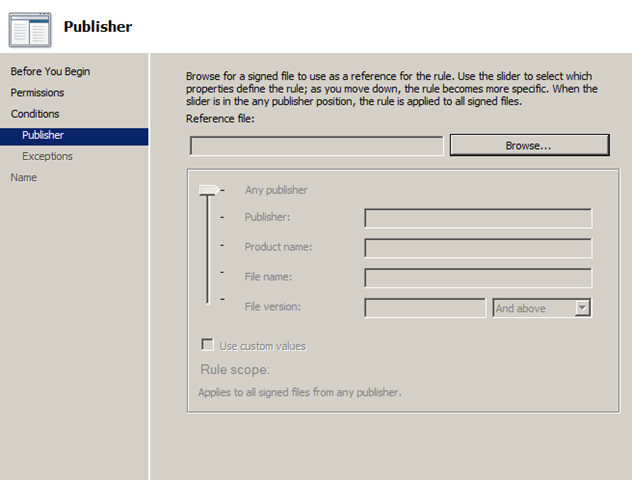
Step 7. Click on “Browse”
image 
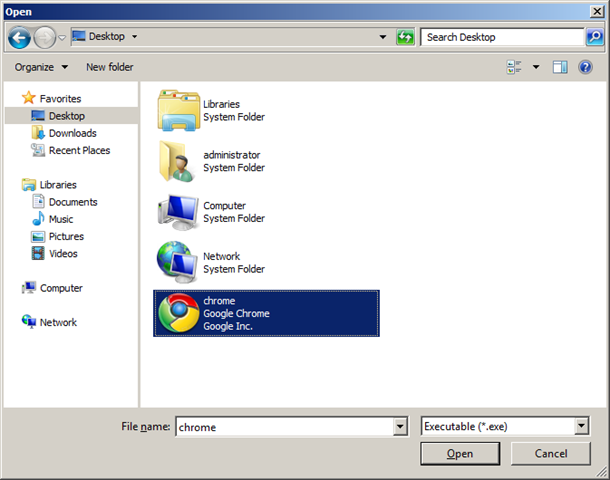
Step 8. Select the “chrome.exe” executable file and click “Open”
image
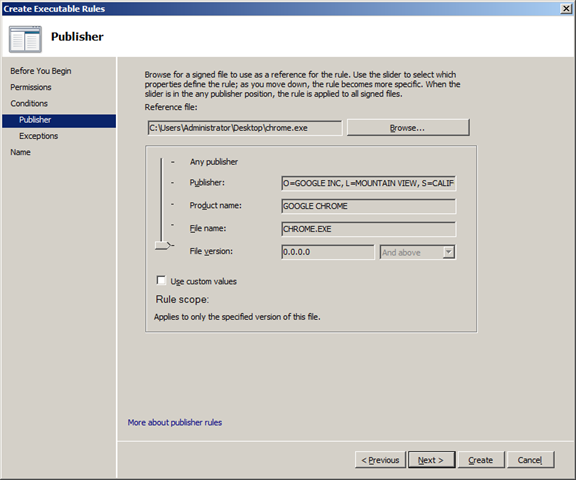
Step 9. In this example we are just going to accept the defaults and click “Next”.
Optional: If you wanted to just block a particular version of browser (or program) or just any version below a certain number tick “Use custom values” and then enter the version number in the “File version” field and select “And Below” from the pop-down menu.
image  
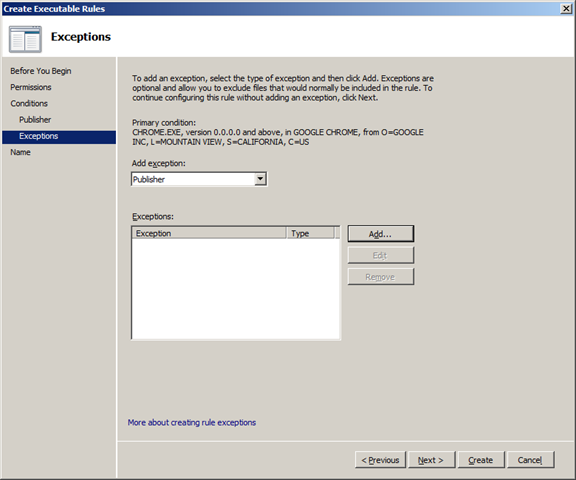
 Step 10: Click “Next”
image 
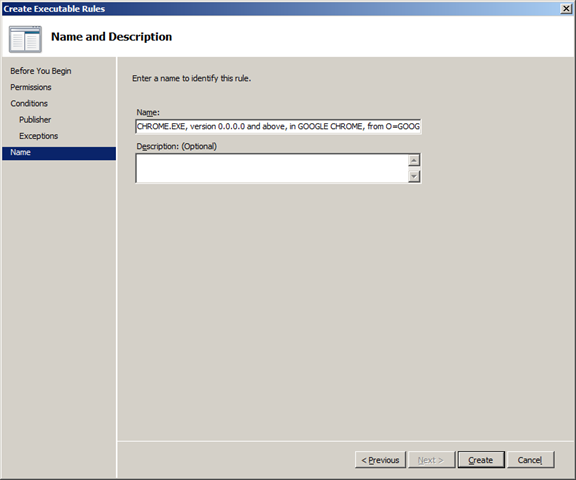
Step 11: Click “Create”
image 
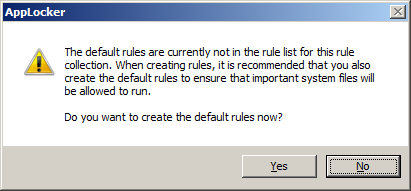
Step 12: You will now be prompted to create some default rules that ensure that you don’t accidently stop Windows from working. Click “Yes” to this if you don’t already have these rules created.
image 
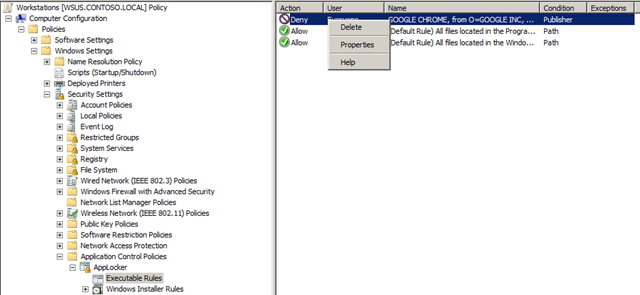
Step 13 (Optional): If you also want this AppLocker rule to apply computer administrators then right-click on the “BUILTIN\Administrators” rule and click “Delete”
image
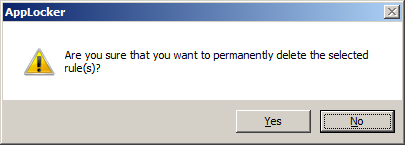
Step 14 (Optional): Click “Yes”
image
You AppLocker Rules are now setup and should now look like this…
 image
Now there is one more thing you need to do to enable AppLocker on the computer…
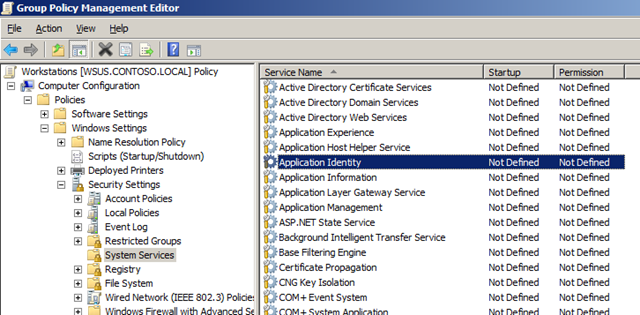
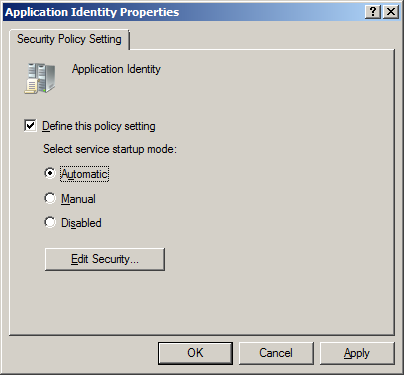
Step 15. In the same Group Policy Object you were just editing navigate to Computer Configuration > Policies > Windows Settings > Security Settings > System Services and double click on the “Application Identity” service.
Note: This is the process that scan’s all the file before they are executed to check the name, hash or signature of the executable before it is run. If this is not turned on then AppLocker will simple now work.
image
Step 16: Tick “Define this policy setting” and tick “Automatic” then click “OK”
image
The services section should now look like this…
image
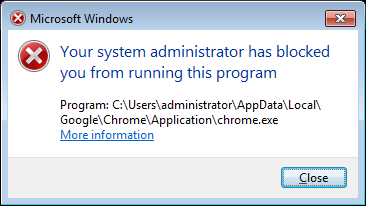
Your all done… Now when the user tries to run an un-approved browser (or program) they will be presented to this dialogue box…
image
Now if you want to make sure you have covered all the bases below is a an image of the AppLocker rules configured with a few more denied browsers…
image

Step bye Step instalation of Windows AIK For Windows 7


Step bye Step instalation of Windows AIK For Windows 7


Windows AIK Installation

(Windows AIK or WAIK) is a collection of tools and technologies produced by Microsoft designed to help deploy Microsoft Windows operating system images to target computers or to a VHD (Virtual Hard Disk). It was first introduced with Windows Vista. The WAIK is a required component of the Microsoft Deployment Toolkit.[1]
Windows AIK Version 1.0 was released with Windows Vista. New or redesigned tools and technologies included Windows System Image Manager (Windows SIM), SysPrepImageX, and Windows Preinstallation Environment (WinPE) v2.0.[2]
Windows® Preinstallation Environment (Windows PE) 3.1 is being released as an Windows Automated Installation Kit (Windows AIK) supplement for Windows 7 Service Pack 1 (SP1). Windows PE 3.1 includes all optional components and language packs. You can apply these optional components and language packs to customize the boot.wim and winre.wim images that are part of the Windows 7 SP1 installation media.


STEP 1     Download the Windows AIK

This is a very large download (1.77GB). A broadband (high-speed) internet connection is highly recomended.

STEP 2    Create the windows AIK DVD
         Once the WAIK file is downloaded, you'll need to burn it to a DVD. The file is in a .img format. Many burning programs like MagicISO, WinISO, etc. can handle the .img format. If you don't have a program that will handle it, you can download a free program called ImgBurnImgBurn will burn the .img file directly to a DVD.

STEP3   Install Windows AIK

       # Insert DVD And Run Startcd.exe
    

Click on Continue
     

The main installation window should now display. Select the Windows AIK Setup option to begin the installation.
         
waytoitexpe


How to create windows PE?

create windows PE
PRE-INSTALLATION ENVIRONMENT


1 ) copype.cmd x86 c:\Winpe

2)  copy c:\Winpe\winpe.wim c:\Winpe\ISO\sources\boot.wim

3 ) copy "c:\program files\windows AIK\Tools\x86\imagex.exe" c:\winpe\ISO

4 ) oscdimg.exe -n -bc:\winpe\etfsboot.com c:\Winpe\ISO c:\Winpe\winpe.iso

copy these commands one by one and exit
(type this on cammand prompt of win aik)

Windows 7 Image Capture Demonstration


Windows 7 Deployment

Windows 7 Image Capture Demonstration


Objectives:
 learn how to capture Windows 7 image using ImageX tool.Before you start

Prerequisites: we have to have WinPE media prepared, which includes ImageX tool which we will use to capture Windows image. Our reference computer should already be installed and ready to be captured.
Key terms: image, sysprep, capture, partition, imagex, winpe, diskpart, reference

Prepare the Reference System (Sysprep)

Before we capture our reference computer image, we should run Sysprep tool on it. Sysprep.exeprepares the Windows image for capture by cleaning up various user and computer specific settings, as well as log files. Let's say that in our case the reference installation is complete and ready to be imaged. Now we will use the sysprep command with the /generalize option to remove hardware-specific information from the Windows installation, and the /oobe option to configure the computer to boot to Windows Welcome upon the next restart. You can run the Sysprep tool from a command prompt by typing: 'c:\windows\system32\sysprep\sysprep.exe /oobe /generalize /shutdownIn'. Alternatively, if we run the Sysprep GUI in audit mode, we can use these options:
  • Enter System Out Of Box Experience (OOBE) (from the System Cleanup Action list)
  • Check the Generalize option
  • Shutdown (from the Shutdown Options list)
  • Click OK

Run WinPE

Our referenced computer is now prepared and turned off. Now we need to boot that computer using WInPE CD which we created earlier. WinPE runs from the command line. It boots the system with a limited version of Windows 7, which provides disk access and limited networking support. It has two different architectures: a 32-bit version and a 64-bit version. The version must match the intended installation version of Windows 7. Once we enter WinPE we can go to the root folder so that we can run ImageX which we copied earlier.
WinPE Root Folder
Image 185.1 - WinPE Root Folder
In WinPE we have access to our network. This is great because we can transfer images to the shared folder on our network. In our case we have a shared folder named 'shared-images' on computer named 'nx7300'. We will map a network drive to our shared folder using a net use command: 'net use z: \\nx7300\shared-images'.
Net Use Command
Image 185.2 - Net Use Command
Our shared folder is password protected, so we have to provide our credentials. Notice that we had to provide the computer name in front of our user name. If we had a domain account, we would provide a domain name instead of computer name.
Net Use Success
Image 185.3 - Net Use Completed Successfully
The shared folder is now mounted as our Z drive. Before we use ImageX command we have to see on which partition our Windows 7 installation is on. To do that we can use diskpart command.
Diskpart Command
Image 185.4 - Diskpart Command
Once in diskpart we can use a 'list disk' command.
List Disk
Image 185.5 - List Disk Command
In our case we only have one disk. Let's select it and list partitions on that disk. To select it enter the 'select disk 0' command.
Selected Disk
Image 185.6 - Selected Disk
To list partitions on disk enter the 'list partition' command.
List Partition
Image 185.7 - List Partition Command
We do that because we might have multiple disks with multiple boot partitions. We have to capture the proper image. In our case we only have one partition. In Windows 7, if we use BitLocker, we will always have at least two partitions when looking disks with diskpart. The first partition, size of 100MB would be BitLocker partition. Letters for partitions in WinPE can be different from those in regular Windows 7. While running Windows PE on a machine with BitLocker, the first logical partition is already used as drive C: (i.e., Partition 1) and does not contain the reference computer's Windows 7 installation. We can always check the content of our partitions.
Content of Windows Drive
Image 185.8 - Check Partition Content
Let's go back to our WinPE disk (x: drive) and run the ImageX command to capture our Windows 7 image. ImageX is a command line tool that creates an image from a reference computer. We will use the command 'imagex /capture c: z:\win7.wim "Win7 Image" /compress fast /verify'. The/capture means that we are capturing Windows image, c: is the drive we are capturing,z:\win7.wim will be the exported file on the z: drive that we mapped to, "Win7 Image" will be the image name, /compress fast will perform fast compression, and we will also verify the image (/verify switch).
ImageX Command
Image 185.9 - ImageX Command
ImageX Scanning
Image 185.10 - ImageX Scanning...
ImageX will first scan all files that are on our C: partition and then create an image out of all that files. Once the process is complete we will have win7.wim file which we can deploy to other computers, or which we can use to perform recovery if our computer brakes down. If we intend to transfer that image to different computer, we must run Sysprep on the reference computer before we capture the image.

Remember

If we intend to transfer captured image to different computer, we must run Sysprep on the reference computer before we capture the image. Once in WinPE, we can mount shared folder using Net Use command, which we will then use to store our captured image. Before capturing we also have to check which partition exactly contains Windows 7 installation files using diskpart command.
Commands that are mentioned in this article
Use Sysprep:
  • c:\windows\system32\sysprep\sysprep.exe /oobe /generalize /shutdown - run sysprep with the /generalize option to remove hardware-specific information from the Windows installation, and the /oobe option to configure the computer to boot to Windows Welcome upon the next restart
Capture image using WinPE:
  • net use z: \\nx7300\shared-images - map a network drive to our shared folder using a net use command
  • diskpart - used to check on which partition our Windows 7 installation is on
  • list disk - used inside of diskpart to list all disks on our computer
  • select disk 0 - used inside of diskpart to select disk 0
  • list partition - used inside of diskpart to list all partitions on selected disk
  • imagex /capture c: z:\win7.wim "Win7 Image" /compress fast /verify - commend which we used to capture Windows 7 image to the z:\win7.wim image, with the name "Win7 Image", using fast compression. The image will be verified.
Paths that are mentioned in this article
  • c:\windows\system32\sysprep\sysprep.exe - location of the Sysprep tool
  • \\nx7300\shared-images - UNC path to our shared folder in which we stored captured image